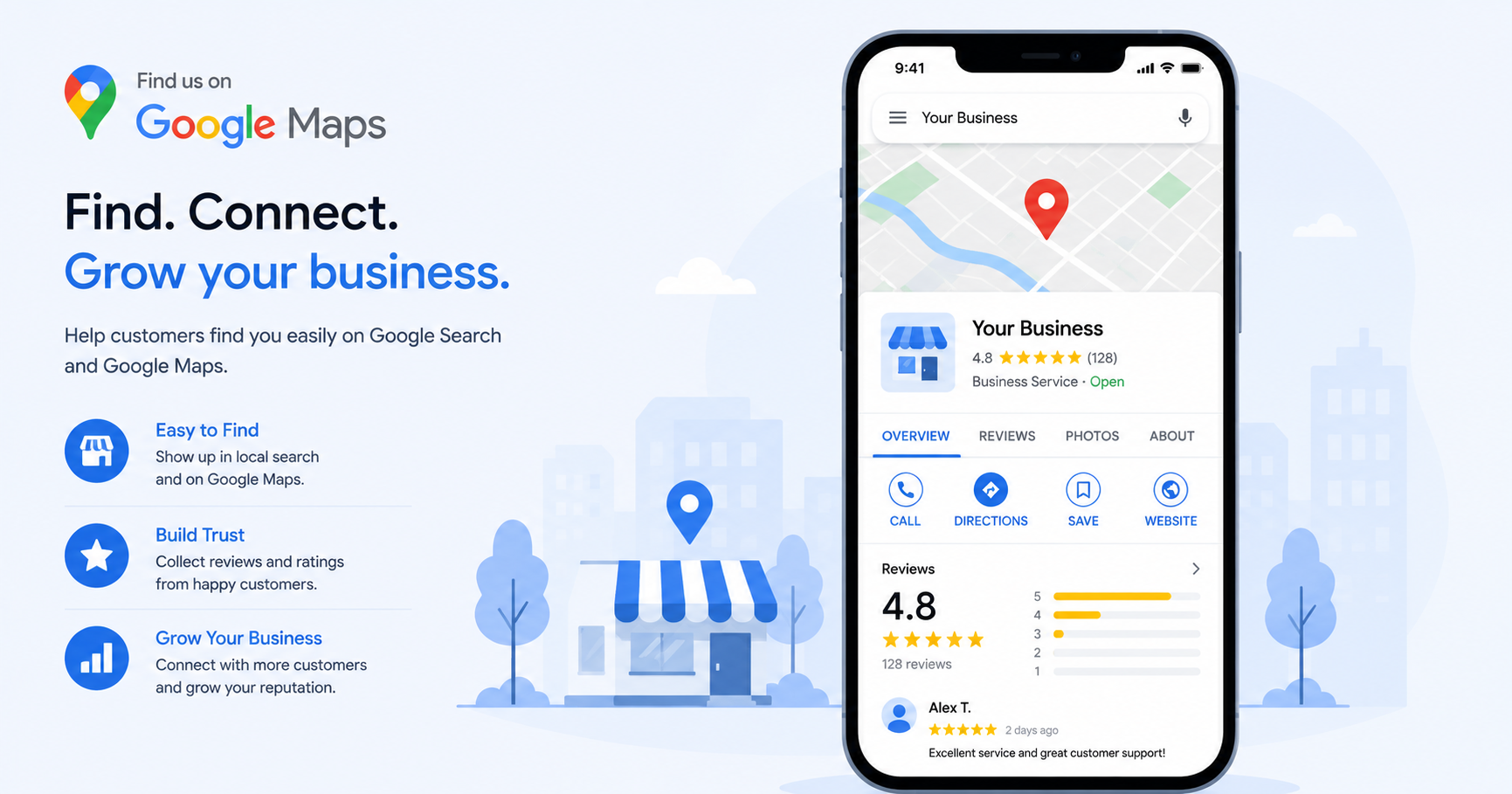
If you serve local customers anywhere in the UK — from a plumber in Cardiff to a café in Glasgow — Google Business Profile is the single most important free tool available to you. It's what determines whether you show up in the Maps Pack: those three results at the top when someone searches 'plumber near me' or 'accountant in [town].' Here's exactly how to set it up correctly the first time.
Why Google Business Profile matters for local search
Google now shows AI-generated answers and expanded Maps results for most local searches. A well-managed Business Profile is still one of the most powerful ranking assets you have — but a half-finished or outdated one actively works against you. Getting this right is usually the single highest-impact thing a local business can do, and it's completely free. It's also one of the core fundamentals we cover as part of our SEO service.
Step 1: Create or claim your profile
Go to google.com/business and sign in with the Google account you want to manage the profile from. Search for your business name — if it already exists (sometimes created automatically by Google), claim it. If not, click 'Add your business' and enter your business name exactly as it appears on your website and any signage.
Step 2: Choose the right category
Your primary category matters more than most business owners realise — it directly affects which searches you show up for. Be as specific as possible:
- Good: "Web design company"
- Too vague: "Business service"
- You can add secondary categories too, but keep your primary category the most accurate match for what you do
Step 3: Add your service area or address
If customers visit your premises, add your full address. If you serve customers at their location instead (common for many UK trades and agencies), choose 'service area business' and list the towns or regions you cover — from Birmingham and the West Midlands to the Home Counties — rather than displaying a public address.
Step 4: Verify your profile
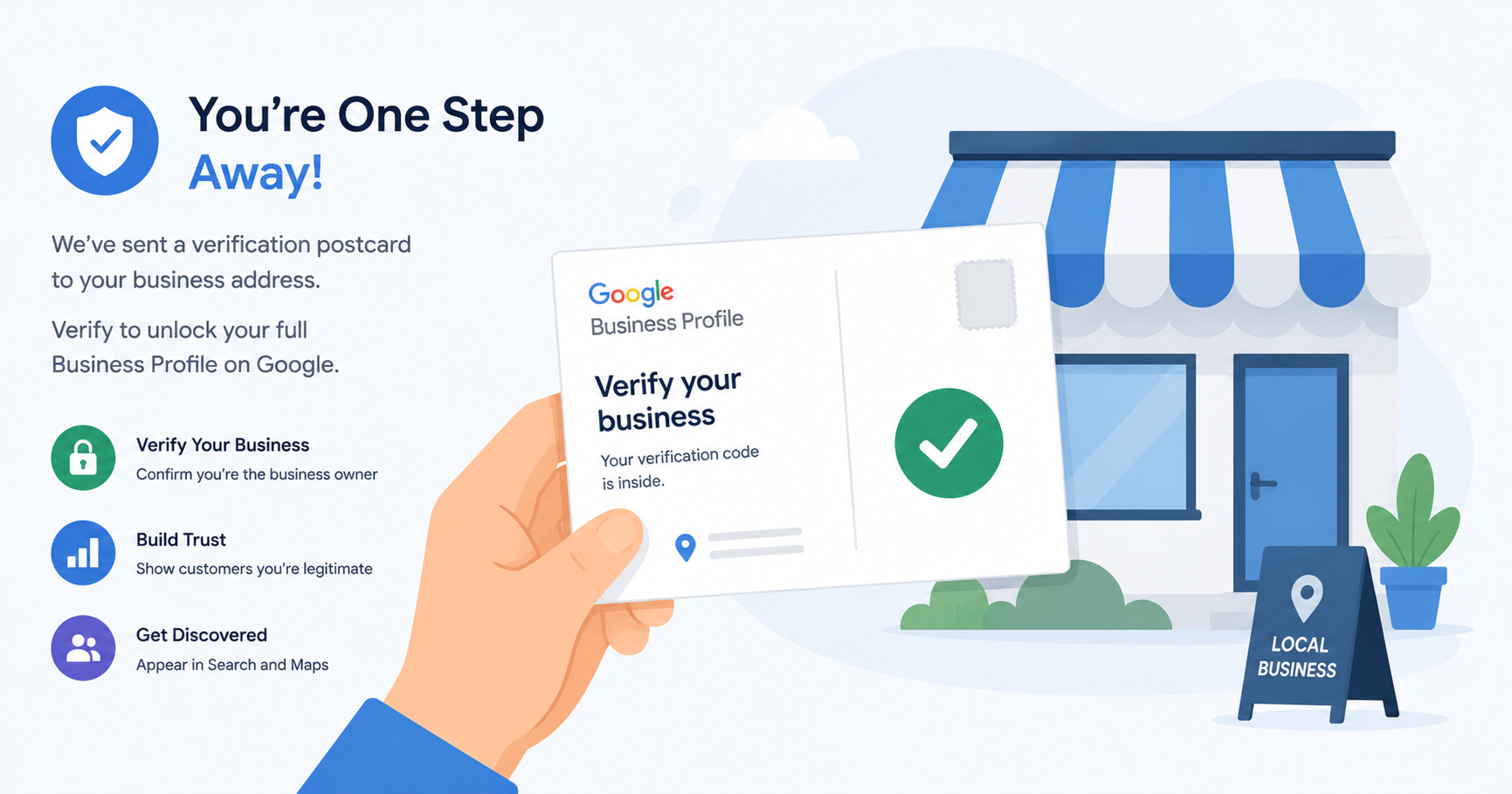
Google will verify your business, usually by postcard sent to your address, sometimes by phone or email depending on your business type. This can take one to two weeks by post in the UK, so start this step early rather than leaving it until you need visibility urgently.
Step 5: Complete every section
An incomplete profile signals low activity to Google, which can quietly hurt your ranking. Make sure you've added:
- Phone number and website URL
- Accurate opening hours (including bank holidays)
- A clear, honest business description
- Real photos of your work, premises, or team — profiles with photos get significantly more engagement than those without
Common verification issues in the UK and fixes
A few issues come up repeatedly for UK businesses:
- Postcard delays — if two weeks pass with nothing, request a new one rather than waiting indefinitely
- Residential addresses — you can hide your exact address from public view while still verifying it
- Moving premises — update your profile immediately rather than leaving old address information live, since inconsistency between your website and profile actively damages trust signals
Optimising your profile after setup
Once live, treat your profile as an ongoing asset, not a one-time setup. Post updates periodically — offers, new services, or recent work. Respond to every review, positive or negative, professionally and promptly. Keep your hours accurate, especially around UK bank holidays, since incorrect hours are one of the fastest ways to lose a customer's trust before they've even contacted you.
How reviews affect your Maps ranking
Review volume and recency matter more than most business owners expect. A business with twelve reviews from years ago is regularly outranked by a competitor with forty reviews from the last six months. Make asking for a review a standard part of finishing every job, rather than an occasional afterthought.
Sources
Related Reading
VersaRange Digital Agency
Serving startups and local businesses across the UK
Phone: +44 7460 015194